Widgets
Your day, on the Home Screen and the desktop.
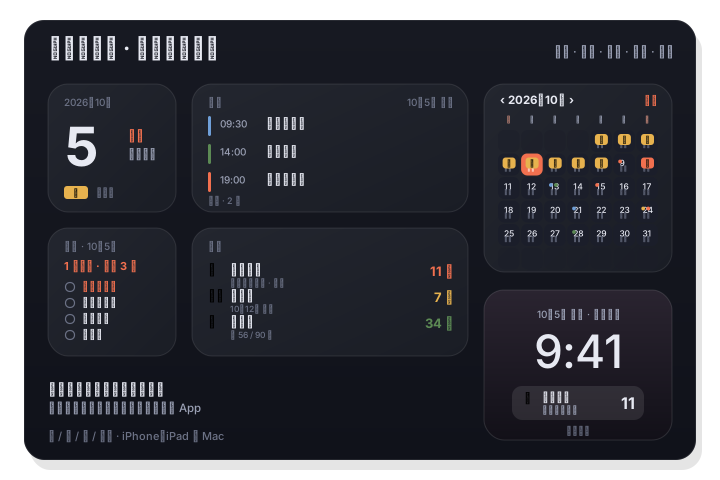
Five widgets — Month, This Week, Agenda, Tasks, and Days — in small, medium, large, and extra-large, for the Mac desktop and Notification Center and for the iPhone and iPad Home Screen. A countdown fits the iPhone Lock Screen too. Tap any row to open exactly that item.
Mac: right-click the desktop › Edit Widgets. iPhone / iPad: touch and hold the Home Screen or Lock Screen › Add Widget, then search for LiLi Cal.
How it works
- 1
Add a widget
Search for LiLi Cal in the widget gallery on your Mac, iPhone, or iPad and pick Month, This Week, Agenda, Tasks, or Days.
- 2
Pick a size
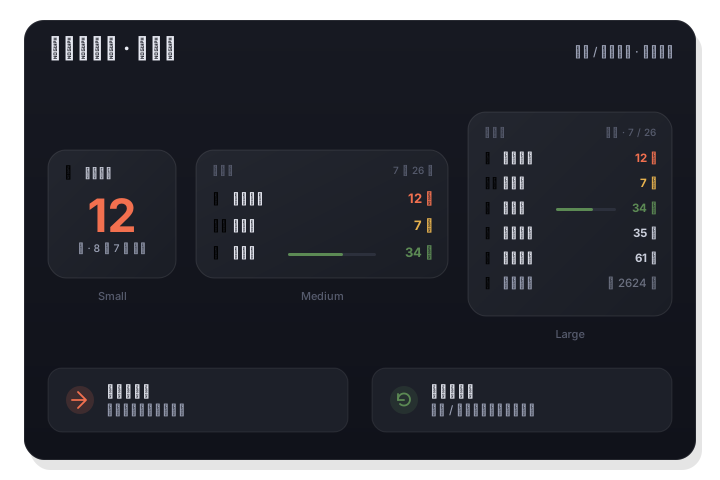
Small shows one thing big — today's date, the next event, the nearest countdown. Medium and large add lists; extra-large puts a whole month beside your agenda.
- 3
Tap to jump in
Every row is a link: tap an event, a task, or a day and LiLi Cal opens on exactly that item — a repeating event opens the occurrence you tapped.
Five widgets, one calendar
Month shows the grid with lunar dates, solar terms, holidays, and 休 / 班 marks, and lets you page months right inside the widget. This Week lays out seven days with that day's events, tasks, and Days underneath. Agenda lists what is still ahead, with the meeting in progress first. Tasks puts overdue items on top. Days keeps your countdowns current.
- Month, This Week (iPhone & iPad), Agenda, Tasks, Days
- Small, medium, large, and extra-large sizes
- Page months or weeks inside the widget; it snaps back to today after five minutes
Current even when the app is closed
Widgets read a snapshot the app keeps up to date, and the day-based numbers advance at midnight on their own — so a countdown ticks down every morning whether or not you opened LiLi Cal. Repeating birthdays and anniversaries roll over to the next occurrence by themselves.
- Day counts advance at midnight without the app running
- Agenda and Tasks refresh as events start and tasks come due
- A Lock Screen countdown on iPhone, in circular, rectangular, and inline styles
Good to know
- Widgets
- Month · This Week · Agenda · Tasks · Days
- Sizes
- Small, medium, large, and extra-large (extra-large on iPad and Mac)
- Lock Screen
- Days countdown on iPhone — circular, rectangular, inline
- Tap target
- Each row opens that exact item in the app
- Updates
- Daily at midnight, plus whenever events, tasks, or Days change
- Platforms
- macOS 14+, iOS 17+, iPadOS 17+