Product docs
Manage tasks in LiLi Cal
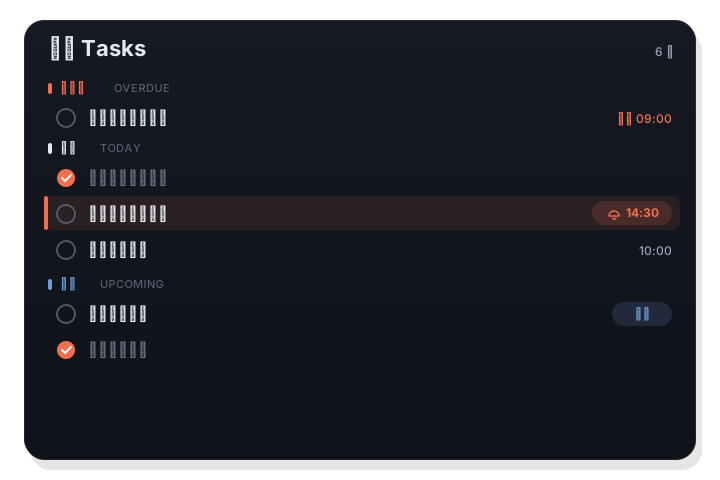
The Tasks tab groups your tasks into overdue, today, upcoming, and no date. You can add tasks inline in a single keystroke, set per-task reminders, and everything is backed by the system Reminders app.
Puntos clave
- Tasks are grouped by overdue, today, upcoming, and no date.
- Add tasks inline: type a title, press Return.
- Set per-task reminders (🔔), toggle completed tasks, and delete with right-click.
Grouped by status
The Tasks tab sorts everything into four groups so you always know what needs attention. Overdue is first, then today, then upcoming, with a separate section for tasks that have no date. This turns a flat list into a clear priority order.
- Overdue, today, upcoming, and no date groups.
- Overdue surfaces at the top so nothing slips.
- Undated tasks are kept separate, not lost.
Inline add in one keystroke
You can add a task inline at the top of the Tasks tab. Type a title, press Return, and it is created in your system Reminders straight away. The field keeps focus and the panel stays open, so you can enter several in a row, and the 🔔 button sets a reminder time on the one you just typed.
- Add tasks directly in the Tasks tab.
- The field keeps focus, so you can add several in a row.
- No separate form to fill in.
Reminders, completion, and delete
Each task can carry its own reminder, shown with a 🔔, so you are alerted at the right time. You can toggle whether completed tasks are shown, and right-click a task to delete it. Because the Tasks tab is backed by system Reminders, these changes sync everywhere your Reminders do.
- Per-task reminders marked with 🔔.
- Show-completed toggle to hide or reveal done tasks.
- Right-click to delete; backed by system Reminders.
Preguntas frecuentes
Where are my tasks stored?
Tasks are backed by the system Reminders app, so they sync through iCloud alongside your other reminders and there is no separate store.
How do I hide completed tasks?
Use the show-completed toggle in the Tasks tab to reveal or hide tasks you have already finished.